Creating Roles for security (row level security) #422


|
Hi - I'm using Tabular Editor 3 to create model datasets deployed to the Power BI service and getting to the point in the model where I need to implement security roles to restrict access to tables or specific rows within tables. Is there any recommendations for best documentation on how to set row level security rows in TE3 so that when deployed to Power BI, it applies the rules. Ideally, I want to be able to tie the model Roles to groups accessible through Power BI from our Microsoft Azure Active Directory. |
Replies: 1 comment 1 reply

|
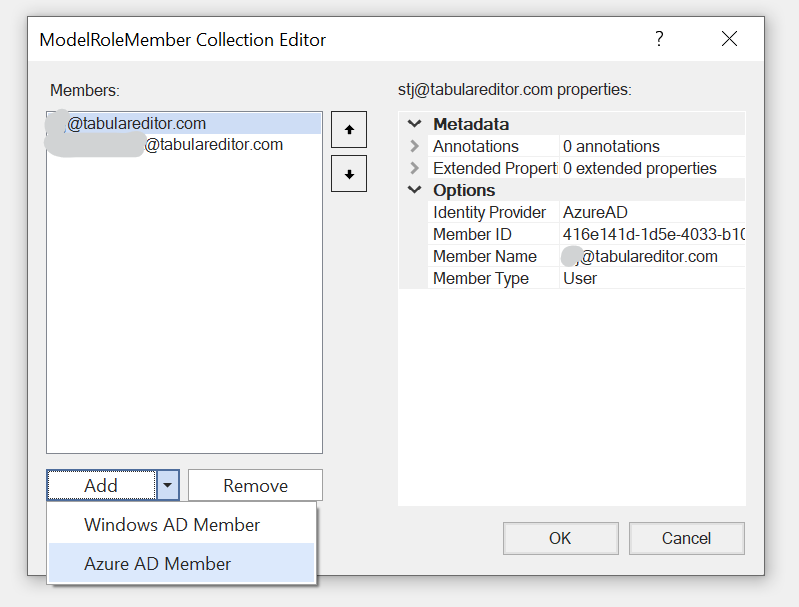
Hi @Declan1984 It is not completely clear what you're asking. If you require general guidance on Row Level Security, see this article. Adding roles and RLS expressions through Tabular Editor should be straightforward, but let me know if you require assistance on this part. You can add Role members through Tabular Editor while connectd to a Power BI dataset through the XMLA endpoint. Locate the Members property on the role and click the ellipsis button to bring up the ModelRoleMember collection editor:´. Then choose "Add > Azure AD Member":
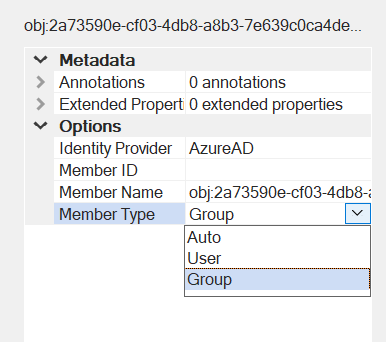
On the new member, specify Member Name as well as Member Type. For users, the Member Name should be their e-mail address. For groups, the Member Name is the object-id string (which can be found in the Azure AD):
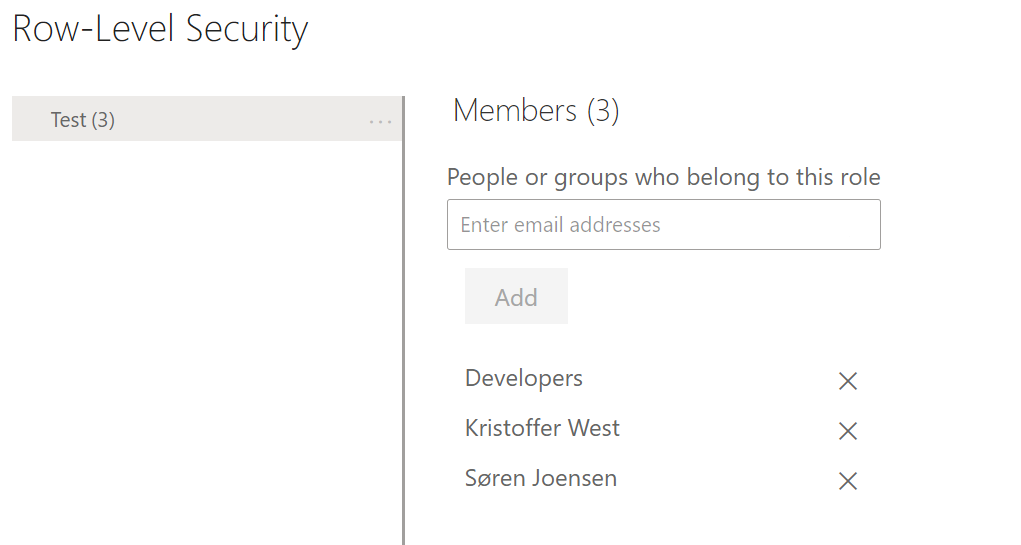
Leave the Member ID property blank. It will be populated automatically when the model is saved back to the service. After saving the model, you can validate that the members have indeed been assigned by browsing to the "Security" page for the dataset in the PBI service:
|

|
Thanks @otykier despite the ambiguity of my question, this should cover what I was looking for. |


Hi @Declan1984
It is not completely clear what you're asking.
If you require general guidance on Row Level Security, see this article. Adding roles and RLS expressions through Tabular Editor should be straightforward, but let me know if you require assistance on this part.
You can add Role members through Tabular Editor while connectd to a Power BI dataset through the XMLA endpoint. Locate the Members property on the role and click the ellipsis button to bring up the ModelRoleMember collection editor:´. Then choose "Add > Azure AD Member":
On the new member, specify Member Name as well as Member Type. For users, the Member Name should be their e-mail address. For groups, the Member Name …